09-vue组件库&工具库&交互集

image-20200723170734421

1. 组件库

集合来自社区贡献的数以千计的插件和库:https://github.com/vuejs/awesome-vue#components--libraries

1.1 elementUI - PC端后台

elementUI,饿了么UED团队退出的 vue 前端框架,主要用于PC端(偏后台系统)。

官网:https://element.eleme.cn/

源码:https://github.com/ElemeFE/element

1.1.1 安装×2

  • 从0开始可以通过如下命令
1
2
3
vue create my-app
cd my-app
vue add element
  • 项目已经写了,通过如下命令安装
1
2
3
4
5
# Vue 3 项目,安装 plus 版:
npm i element-plus -S

# Vue 2 项目,安装兼容版本,如2.9.2:
npm i element-ui@2.9.2 -S

默认安装的是最新版,如果需要安装指定版本使用如下命令:

1
2
npm uninstall element-ui -f
npm i element-ui@版本号 -f

1.1.2 引入

1
2
3
4
5
import Vue from "vue";
import ElementUI from "element-ui";
import "element-ui/lib/theme-chalk/index.css";

Vue.use(ElementUI);

测试:

1
2
3
4
5
6
7
8
9
10
11
12
13
14
15
16
17
18
19
20
21
22
23
24
25
26
27
28
29
30
31
32
33
34
35
36
37
38
39
40
41
42
43
44
45
46
47
48
49
<template>
<el-table :data="tableData" style="width: 100%">
<el-table-column prop="date" label="日期" width="180"> </el-table-column>
<el-table-column prop="name" label="姓名" width="180"> </el-table-column>
<el-table-column prop="address" label="地址"> </el-table-column>
{{msg}}
</el-table>
</template>

<script>
import Vue from "vue";
import ElementUI from "element-ui";
import "element-ui/lib/theme-chalk/index.css";

Vue.use(ElementUI);

export default {
data() {
return {
msg: 'hello,table',
tableData: [
{
date: "2016-05-02",
name: "王小虎",
address: "上海市普陀区金沙江路 1518 弄",
},
{
date: "2016-05-04",
name: "王小虎",
address: "上海市普陀区金沙江路 1517 弄",
},
{
date: "2016-05-01",
name: "王小虎",
address: "上海市普陀区金沙江路 1519 弄",
},
{
date: "2016-05-03",
name: "王小虎",
address: "上海市普陀区金沙江路 1516 弄",
},
],
};
},
};
</script>

<style></style>

启动项目,验证发现 element-ui的 el-table 不显示,最终发现是依赖版本过高的问题。

解决方案:

1
2
npm uninstall element-ui -f
npm i element-ui@2.9.2 -f

重启项目,验证OK。

1.1.3 使用

1
2
3
4
5
6
7
8
9
10
11
12
13
14
15
16
17
18
19
20
21
22
23
24
25
26
27
28
29
30
31
32
33
34
35
36
37
38
39
40
41
42
43
44
45
46
47
48
49
50
51
52
53
54
55
56
57
58
59
60
61
62
63
64
65
66
67
68
69
70
71
72
73
74
75
76
77
78
79
80
81
82
83
84
85
86
87
88
89
90
91
92
93
94
95
96
97
98
99
100
101
102
103
104
105
106
107
108
109
110
111
112
113
<template>
<el-container style="height: 100%;">
<el-aside width="200px" style="background-color: rgb(238, 241, 246)">
<el-menu :default-openeds="['1', '2']">
<el-submenu v-for="data in sideList" :key="data.id" :index="data.id+''" >
<template slot="title">
<i class="el-icon-message"></i>
{{data.title}}
</template>
<el-menu-item v-for="item in data.children" :key="item.id" :index="item.id+''">
{{item.title}}
</el-menu-item>
</el-submenu>
</el-menu>
</el-aside>

<el-container>
<el-header style="text-align: right; font-size: 12px">
<el-dropdown>
<i class="el-icon-setting" style="margin-right: 15px"></i>
<el-dropdown-menu slot="dropdown">
<el-dropdown-item>查看</el-dropdown-item>
<el-dropdown-item>新增</el-dropdown-item>
<el-dropdown-item>删除</el-dropdown-item>
<el-dropdown-item>退出</el-dropdown-item>
</el-dropdown-menu>
</el-dropdown>
<span>{{myname}}</span>
</el-header>

<el-main>
<el-table :data="tableData">
<el-table-column prop="date" label="日期" width="140">
</el-table-column>
<el-table-column prop="name" label="姓名" width="120">
</el-table-column>
<el-table-column prop="address" label="地址"> </el-table-column>
</el-table>
</el-main>
</el-container>
</el-container>
</template>

<script>
import ElementUI from "element-ui";
import "element-ui/lib/theme-chalk/index.css";
import Vue from "vue";

Vue.use(ElementUI);

export default {
data() {
const item = {
date: "2016-05-02",
name: "王小虎",
address: "上海市普陀区金沙江路 1518 弄",
};
return {
myname: 'Jerry',
sideList: [
{
id: 1,
title: '用户管理',
children: [
{
id: 11,
title: '用户列表'
},
{
id: 12,
title: '用户权限'
},
]
},
{
id: 2,
title: '权限管理',
children: [
{
id: 21,
title: '权限列表'
},
{
id: 22,
title: '角色列表'
},
]
}
],
tableData: Array(10).fill(item),
};
},
};
</script>

<style lang="scss" scoped>
*{
margin: 0;
}
html,body{
height: 100%;
}
.el-header {
background-color: #b3c0d1;
color: #333;
line-height: 60px;
}

.el-aside {
color: #333;
}
</style>

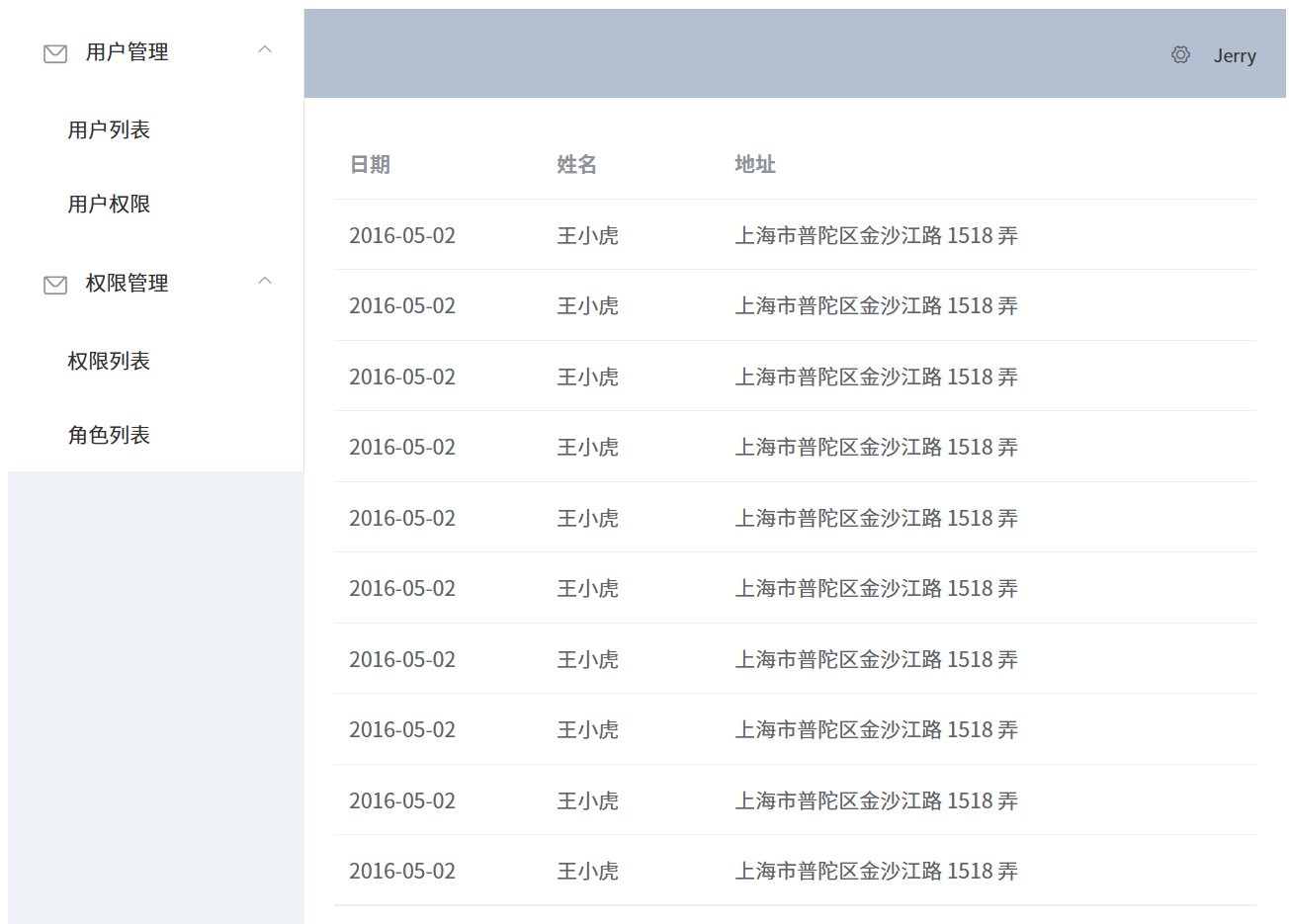
效果:

image-20251226105300321

1.2 vant - 移动端

vant,有赞技术团队推出的 vue 前端框架,主要用于移动端。

官网:https://vant-ui.github.io/vant/#/zh-CN

源码:https://github.com/youzan/vant

1.2.1 安装

现有项目中使用,通过如下命令安装

1
2
3
4
5
# Vue 3 项目,安装最新版 Vant:
npm i vant -S

# Vue 2 项目,安装 Vant 2,如果有报错使用 -f 强制安装(如2.13.9):
npm i vant@latest-v2 -S

1.2.2 引入

1
2
3
4
5
import Vue from 'vue';
import Vant from 'vant';
import 'vant/lib/index.css';

Vue.use(Vant);

1.2.3 使用

NavBar 导航栏(使用插槽自定义两侧内容) + Icon 图标(基础图标)

1
2
3
4
5
6
7
8
9
10
11
12
13
14
15
16
17
18
19
20
21
22
23
24
25
26
27
28
29
30
31
32
33
34
35
36
37
38
39
<template>
<div>
<van-nav-bar title="影院" @click-left="onClickLeft" @click-right="onClickRight" ref="navbar">
<template #left>
深圳
<van-icon name="arrow-down" />
</template>
<template #right>
<van-icon name="search" size="22" color="black" />
</template>
</van-nav-bar>
...
</div>
</template>

<script>
...
import { Toast } from 'vant';

export default {
...data...
mounted() {
// 动态计算高度: 视口高度 - 底部选项卡高度, 注意一定要加单位 'px'
this.height =
document.documentElement.clientHeight -
this.$refs.navbar.$el.offsetHeight - //还需要减去顶部的高度
document.querySelector("footer").offsetHeight +
"px";
},
methods: {
onClickLeft() {
Toast("返回");
},
onClickRight() {
Toast("搜索");
},
},
};
</script>

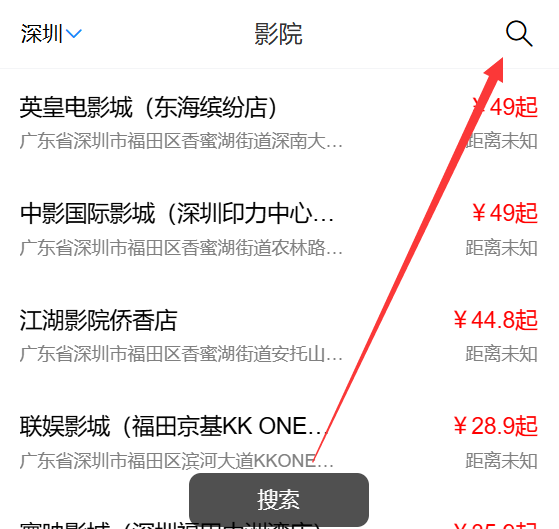
效果:

image-20251226112537788

2. 工具库

2.1 axios - 请求库

axios 基于 Promise 的网络请求库,官网: https://www.axios-http.cn/

npm i axios

一般封装使用,封装工具类

2.1.1 http.js 工具类

1
2
3
4
5
6
7
8
9
10
11
12
13
14
15
16
17
18
19
20
21
22
23
24
25
26
27
28
29
30
31
32
33
34
35
36
37
38
39
40
41
42
43
44
45
46
47
48
49
50
51
52
53
54
55
56
57
58
59
60
61
62
63
64
65
66
67
68
69
70
71
72
73
74
75
76
77
78
79
80
81
82
83
84
85
86
87
88
89
90
91
92
93
94
95
96
97
98
99
100
101
102
103
104
105
106
107
108
109
110
111
112
113
114
115
116
117
118
119
120
121
122
123
124
125
126
127
128
129
130
131
132
133
134
135
136
137
138
139
140
141
142
143
144
145
146
147
148
149
150
151
152
153
154
155
156
157
158
159
160
161
162
163
164
165
166
167
168
169
170
171
172
173
174
175
176
177
178
179
180
181
182
183
184
185
186
187
188
189
190
191
192
193
194
195
196
197
198
199
200
201
202
203
204
205
206
207
208
209
210
211
212
213
214
215
216
217
218
219
220
221
222
223
224
225
226
227
228
229
230
231
232
233
234
235
236
237
238
239
240
241
242
243
244
245
246
247
248
249
250
251
252
253
254
import axios from 'axios'
import { Message, MessageBox } from 'element-ui' // 适配Vue2+ElementUI的提示组件
import store from '@/store' // 如需获取token,引入vuex(可根据项目调整)
import router from '@/router' // 路由跳转(登录失效时用)

// 1. 创建axios实例
const service = axios.create({
baseURL: process.env.VUE_APP_BASE_API, // 环境变量区分接口前缀(推荐)
timeout: 10000, // 请求超时时间
headers: {
'Content-Type': 'application/json;charset=utf-8'
}
})

// 2. 请求取消令牌:防止重复提交
const pendingMap = new Map()
/**
* 生成请求唯一标识
* @param {Object} config axios配置
*/
const getPendingKey = (config) => {
let { url, method, params, data } = config
if (typeof data === 'string') data = JSON.parse(data) // 处理序列化后的data
return [url, method, JSON.stringify(params), JSON.stringify(data)].join('&')
}
/**
* 添加请求到待取消队列
*/
const addPending = (config) => {
const key = getPendingKey(config)
config.cancelToken = config.cancelToken || new axios.CancelToken(cancel => {
if (!pendingMap.has(key)) {
pendingMap.set(key, cancel)
}
})
}
/**
* 移除并取消重复请求
*/
const removePending = (config) => {
const key = getPendingKey(config)
if (pendingMap.has(key)) {
const cancel = pendingMap.get(key)
cancel(`重复请求已取消:${config.url}`)
pendingMap.delete(key)
}
}

// 3. 请求拦截器:添加token、取消重复请求
service.interceptors.request.use(
(config) => {
// 取消重复请求
removePending(config)
addPending(config)

// 添加token(根据项目鉴权方式调整)
if (store.getters.token) {
config.headers['Authorization'] = `Bearer ${store.getters.token}`
}
return config
},
(error) => {
console.error('请求拦截器错误:', error)
return Promise.reject(error)
}
)

// 4. 响应拦截器:统一错误处理、数据解构
service.interceptors.response.use(
(response) => {
// 移除已完成的请求
removePending(response.config)

const res = response.data
// 业务码判断(根据后端约定调整,示例:200为成功)
if (res.code !== 200) {
// 提示错误信息
Message({
message: res.msg || '请求失败',
type: 'error',
duration: 3 * 1000
})

// 常见业务异常处理
switch (res.code) {
case 401: // 未登录/登录过期
MessageBox.confirm(
'登录状态已失效,请重新登录',
'系统提示',
{
confirmButtonText: '重新登录',
cancelButtonText: '取消',
type: 'warning'
}
).then(() => {
store.dispatch('user/logout').then(() => {
router.push(`/login?redirect=${router.currentRoute.fullPath}`)
})
})
break
case 403: // 权限不足
Message({
message: '暂无操作权限',
type: 'error',
duration: 3 * 1000
})
break
case 404: // 接口不存在
Message({
message: '请求资源不存在',
type: 'error',
duration: 3 * 1000
})
break
case 500: // 服务器错误
Message({
message: '服务器内部错误,请稍后重试',
type: 'error',
duration: 3 * 1000
})
break
}
return Promise.reject(new Error(res.msg || '请求失败'))
} else {
// 成功时直接返回数据(简化业务层调用)
return res
}
},
(error) => {
// 移除失败的请求
if (error.config) {
removePending(error.config)
}

// 网络/超时错误处理
console.error('响应错误:', error)
let msg = ''
if (axios.isCancel(error)) {
console.warn('请求已取消:', error.message)
return Promise.reject(error)
} else if (error.message.includes('timeout')) {
msg = '请求超时,请稍后重试'
} else if (error.message.includes('Network Error')) {
msg = '网络异常,请检查网络连接'
} else {
msg = error.msg || '请求失败'
}

Message({
message: msg,
type: 'error',
duration: 3 * 1000
})

// 401状态码单独处理(网络层的401)
if (error.response && error.response.status === 401) {
MessageBox.confirm(
'登录状态已失效,请重新登录',
'系统提示',
{
confirmButtonText: '重新登录',
cancelButtonText: '取消',
type: 'warning'
}
).then(() => {
store.dispatch('user/logout').then(() => {
location.reload() // 强制刷新,避免路由缓存问题
})
})
}
return Promise.reject(error)
}
)

// 5. 暴露核心请求方法(封装常用请求类型)
export default {
/**
* GET请求
* @param {string} url 接口地址
* @param {Object} params 请求参数
* @param {Object} config 额外配置
*/
get(url, params = {}, config = {}) {
return service({
url,
method: 'get',
params,
...config
})
},

/**
* POST请求
* @param {string} url 接口地址
* @param {Object} data 请求体
* @param {Object} config 额外配置
*/
post(url, data = {}, config = {}) {
return service({
url,
method: 'post',
data,
...config
})
},

/**
* PUT请求
* @param {string} url 接口地址
* @param {Object} data 请求体
* @param {Object} config 额外配置
*/
put(url, data = {}, config = {}) {
return service({
url,
method: 'put',
data,
...config
})
},

/**
* DELETE请求
* @param {string} url 接口地址
* @param {Object} params 请求参数
* @param {Object} config 额外配置
*/
delete(url, params = {}, config = {}) {
return service({
url,
method: 'delete',
params,
...config
})
},

/**
* 上传文件(FormData)
* @param {string} url 接口地址
* @param {FormData} data 表单数据(包含文件)
* @param {Object} config 额外配置(如进度回调)
*/
upload(url, data, config = {}) {
return service({
url,
method: 'post',
data,
headers: {
'Content-Type': 'multipart/form-data'
},
...config
})
}
}

2.1.2 .env 环境变量

.env.development / .env.production

1
2
3
4
5
# 开发环境
VUE_APP_BASE_API = '/dev-api' # 开发环境接口前缀(配合vue-cli代理)

# 生产环境
VUE_APP_BASE_API = '/prod-api' # 生产环境接口前缀

2.1.3 vue.config.js反向代理

vue.config.js

1
2
3
4
5
6
7
8
9
10
11
12
13
module.exports = {
devServer: {
proxy: {
'/dev-api': {
target: 'https://xxx.xxx.com/api', // 后端真实接口地址
changeOrigin: true,
pathRewrite: {
'^/dev-api': '' // 移除前缀
}
}
}
}
}

2.1.4 组件使用

1
2
3
4
5
6
7
8
9
10
11
12
13
14
15
16
17
18
19
20
21
22
23
24
25
26
import http from '@/utils/http.js'

// GET请求
http.get('/user/list', { page: 1, size: 10 })
.then(res => {
console.log('用户列表:', res.data)
})
.catch(err => {
console.error('请求失败:', err)
})

// POST请求
http.post('/user/add', { name: '张三', age: 20 })
.then(res => {
Message.success('添加成功')
})

// 文件上传
const formData = new FormData()
formData.append('file', file) // file为<input type="file">选择的文件
http.upload('/file/upload', formData, {
onUploadProgress: (progressEvent) => {
const progress = (progressEvent.loaded / progressEvent.total) * 100
console.log('上传进度:', progress + '%')
}
})

2.2 swiper - 轮播库

swiper 各种轮播样式库,官网: https://swiper.com.cn/

npm i swiper

考虑版本兼容:

1
2
# 安装swiper@5(swiper6+对Vue2支持不友好)
npm install swiper@5.4.5 --save

demo

1
2
3
4
5
6
7
8
9
10
11
12
13
14
15
16
17
18
19
20
21
22
23
24
25
26
27
28
29
30
31
32
33
34
35
36
37
38
39
40
41
42
43
44
45
46
47
48
49
50
51
52
53
54
55
56
57
58
59
60
<template>
<!-- 轮播容器:必须设置宽度/高度 -->
<div class="swiper-container" style="width: 100%; height: 300px;">
<!-- 轮播内容列表 -->
<div class="swiper-wrapper">
<div class="swiper-slide" style="background: #f00;">
轮播图1
</div>
<div class="swiper-slide" style="background: #0f0;">
轮播图2
</div>
<div class="swiper-slide" style="background: #00f;">
轮播图3
</div>
</div>
<!-- 分页器(可选) -->
<div class="swiper-pagination"></div>
<!-- 左右切换按钮(可选) -->
<div class="swiper-button-prev"></div>
<div class="swiper-button-next"></div>
</div>
</template>

<script>
// 1. 导入swiper核心和样式(ES6语法)
import Swiper from 'swiper/bundle'
import 'swiper/css/bundle' // 新版本 swiper 8+

export default {
name: 'SwiperDemo',
// 2. 挂载完成后初始化swiper
mounted() {
// 最简初始化:仅保留核心轮播功能
new Swiper('.swiper-container', {
loop: true, // 循环播放
autoplay: {
delay: 3000, // 自动切换间隔(毫秒)
disableOnInteraction: false // 点击后仍自动播放
},
pagination: {
el: '.swiper-pagination' // 分页器元素
},
navigation: {
nextEl: '.swiper-button-next', // 下一页按钮
prevEl: '.swiper-button-prev' // 上一页按钮
}
})
}
}
</script>

<style scoped>
/* 可选:调整按钮样式,避免被遮挡 */
.swiper-button-prev, .swiper-button-next {
color: gray; /* 按钮颜色 */
}
.swiper-pagination-bullet-active {
background: orange; /* 激活的分页器颜色 */
}
</style>

App.vue

1
2
3
4
5
6
7
8
9
10
11
12
13
<template>
<div id="app">
<SwiperDemo/>
</div>
</template>

<script>
import SwiperDemo from './components/SwiperDemo.vue'

export default {
components: { SwiperDemo }
}
</script>
  1. 核心步骤:导入 Swiper → 写固定 DOM 结构 → mounted 中初始化;
  2. 必须给轮播容器设置宽高,否则无法渲染。

轮播冲突

同一个页面多个轮播对象。

1
2
3
4
5
6
// 解决轮播冲突:从父传过来不同的 class名,绑定新的name值,new出来对应不同的swiper轮播对象,互不影响
new Swiper('.' + this.name, {
slidesPerView: this.perview,
spaceBetween: 30,
freeMode: true
})
1
2
3
<!-- 父传子:perview-轮播数量,name-是class名字 -->
<detail-swiper :perview="3.5" name="actors">...</detail-swiper>
<detail-swiper :perview="1.5" name="photos">...</detail-swiper>

2.3 moment - 时间库

moment 时间处理库,官网: https://momentjs.cn/

npm i moment

demo

1
2
3
4
5
6
7
8
9
10
11
12
13
14
15
16
17
18
19
20
21
22
23
24
25
26
27
28
29
30
31
32
<template>
<div>
<p>当前时间(格式化):{{ formattedNow }}</p>
<p>指定时间转换:{{ formattedDate }}</p>
<p>时间差计算:{{ dateDiff }}</p>
</div>
</template>

<script>
// ES6 导入 moment
import moment from 'moment'

export default {
data() {
return {
formattedNow: '',
formattedDate: '',
dateDiff: ''
}
},
created() {
// 1. 格式化当前时间(最常用)
this.formattedNow = moment().format('YYYY-MM-DD HH:mm:ss') // 20xx-12-28 10:30:00
// 2. 格式化指定时间(时间戳/字符串转标准格式)
const targetDate = '20xx-12-28'
this.formattedDate = moment(targetDate).format('YYYY年MM月DD日') // 20xx年12月28日
// 3. 计算时间差(例如:距离指定日期还有多少天)
const diffDays = moment(targetDate).diff(moment(), 'days')
this.dateDiff = `距离${targetDate}还有${diffDays}天` // 距离20xx-12-28还有1天
}
}
</script>

2.4 better-scroll - 流畅滚动库

better-scroll 更好的滚动库, 官网:https://better-scroll.github.io/docs/zh-CN/

npm i better-scroll

demo

1
2
3
4
5
6
7
8
9
10
11
12
13
14
15
16
17
18
19
20
21
22
23
24
25
26
27
28
29
30
31
32
33
34
35
36
37
38
39
40
41
42
43
44
45
46
47
48
49
50
51
52
53
54
55
56
57
58
59
60
61
62
63
64
65
66
67
68
69
70
71
72
73
74
75
76
77
78
79
<template>
<div>
<!-- 为了使用better-scroll用单独一个div包裹 -->
<div class="box" :style="{ height: height }">
<ul>
<li v-for="data in $store.state.cinemasList" :key="data.cinemaId">
<div class="left">
<div class="cinema_name">{{ data.name }}</div>
<div class="cinema_text">{{ data.address }}</div>
</div>
<div class="right">
<div class="cinema_name" style="color: red">
¥{{ data.lowPrice / 100 }}起
</div>
<div class="cinema_text">距离未知</div>
</div>
</li>
</ul>
</div>
</div>
</template>

<script>
import BetterScroll from "better-scroll";

export default {
data() {
return {
height: "0px",
};
},
mounted() {
// 动态计算高度: 视口高度 - 底部选项卡高度, 注意一定要加单位 'px'
this.height =
document.documentElement.clientHeight -
this.$refs.navbar.$el.offsetHeight - //还需要减去顶部的高度
document.querySelector("footer").offsetHeight +
"px";

// 长度==0时的判断,后面还能看到数据是利用的 store 中的缓存
if (this.$store.state.cinemasList.length === 0) {
// 分发
this.$store
.dispatch("getCinemaData", this.$store.state.cityId)
.then((res) => {
console.log("异步请求结束,数据拿到");
this.$nextTick(() => {
new BetterScroll(".box", {
// better-scroll 初始化
scrollbar: {
fade: true, // 显示滚动条
},
});
});
});
} else {
// 缓存:但是第一次无法滚动,所以异步请求结束时,也需要对 better-scroll 初始化
this.$nextTick(() => {
new BetterScroll(".box", {
// better-scroll 初始化
scrollbar: {
fade: true, // 显示滚动条
},
});
});
}
}
};
</script>

<style lang="scss" scoped>
.box {
// 配合better-scroll使用,必须设置高度 和 溢出隐藏
// height: 38.625rem; // 理想高度:视口高度 减 底部固定导航高度,rem是基于宽度,所以高度需要js动态计算
overflow: hidden;
// 防止better-scroll的滚动条错位:加定位
position: relative;
}
</style>

3. 交互集

3.1 索引城市

demo

1
2
3
4
5
6
7
8
9
10
11
12
13
14
15
16
17
18
19
20
21
22
23
24
25
26
27
28
29
30
31
32
33
34
35
36
37
38
39
40
41
42
43
44
45
46
47
48
49
50
51
52
53
54
55
56
57
58
59
60
61
62
63
64
65
66
67
68
69
70
71
72
73
74
75
76
77
78
79
80
81
82
83
84
85
86
87
88
89
90
91
92
93
94
95
<template>
<van-index-bar :index-list="computedCityList" @change="handleChange">
<div v-for="data in cityList" :key="data.type">
<van-index-anchor :index="data.type" />
<van-cell :title="item.name" v-for="item in data.list" :key="item.cityId" @click="handleCityClick(item)" />
</div>
</van-index-bar>
</template>

<script>
import http from "@/util/http.js";
import Vue from 'vue';
import { Toast } from 'vant';

Vue.use(Toast);

export default {
data() {
return {
cityList: [], //[{type: 'A', list:[{cityId: 111, isHot: 0, name: '', pinyin:''}, ...]}, ...]
};
},
computed: {
computedCityList() {
// 过滤出收集到的字母:目的为了排除掉无城市值的索引字母
return this.cityList.map((item) => item.type);
},
},
mounted() {
http({
url: "https://m.maizuo.com/gateway?k=1105782",
headers: {
"x-host": "mall.film-ticket.city.list",
},
}).then((res) => {
console.log("res->cities: ", res.data.data.cities)
//解析组装城市数据结构
this.cityList = this.renderCity(res.data.data.cities);
console.log(this.cityList);
});
},
methods: {
renderCity(list) {
//console.log(list);
let cityList = [];
let letterList = [];
for (let i = 0; i < 26; i++) {
letterList.push(String.fromCharCode(65 + i)); // 26个大写
// letterList.push(String.fromCharCode(97 + i)) // 26个小写
}
//console.log(letterList);
letterList.forEach((letter) => {
let newList = list.filter(
(item) => item.pinyin.substring(0, 1) === letter
);
newList.length > 0 &&
cityList.push({
type: letter,
list: newList,
});
});
return cityList;
},
handleChange(data) {
// console.log("change->", data) // data是字母
Toast(data);
},
handleCityClick(item) {
console.log(item.name)
// 多页面方案:方式1-拼接到路径,方式2-cookie,方式3-localStorage
// location.href = '#/cinemas?cityname=' + item.name;
// 单页面方案:方式1-中间人模式,方式2-bus总线 $on,$emit
// vuex-状态管理模式
// this.$store.state.cityName = item.name //不要去直接修改,无法被vuex监控到

// 提交给 mutations 监管
this.$store.commit('changeCityName', item.name)
this.$store.commit('changeCityId', item.cityId)

// 给 $router.back() 传参,使用 $route.params
// this.$route.params.cityId = item.cityId
// 点击城市的时候触发 vuex 的 action 去获取影院列表,同步就渲染了影院列表dom数据
this.$store.dispatch("getCinemaData", item.cityId)
this.$router.back()
}
},
};
</script>

<style lang="scss">
// 控制vant toast显示字母的宽度,覆盖默认样式需要去掉 scoped - 但防影响范围要做好充分的测试
.van-toast--html, .van-toast--text {
min-width: 20px;
}
</style>

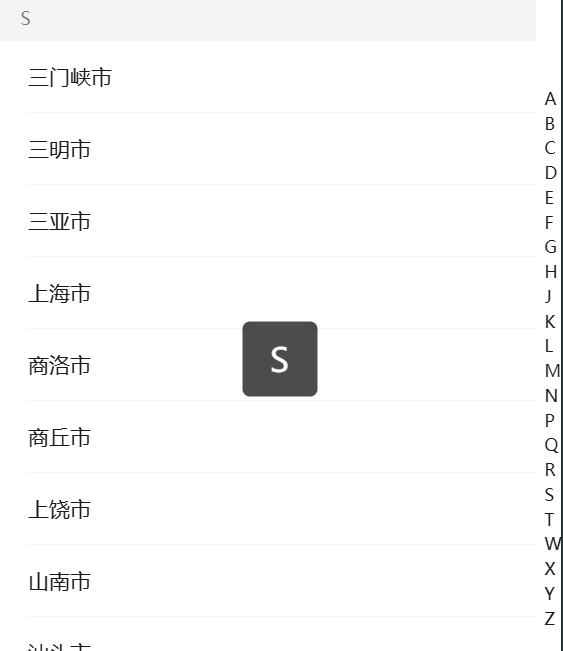
image-20251228220036213

3.2 滑动吸顶

DetailHeader.vue - 可用 vant Navbar导航栏 组件代替。

1
2
3
4
5
6
7
8
9
10
11
12
13
14
15
16
17
18
19
20
21
22
23
24
25
26
27
28
29
30
31
32
33
34
35
36
37
38
39
40
41
42
43
44
45
46
47
48
<template>
<div class="header">
<i class="left" @click="handleBack">&lt;</i>
<slot></slot>
<i class="iconfont icon-fenxiang right"></i>
</div>
</template>

<script>
export default {
methods: {
handleBack () {
// 返回上一页:从哪页来返回哪页
this.$router.back()
}
}
}
</script>

<style lang="scss" scoped>
.header {
position: fixed;
top: 0;
left: 0;
width: 100%;
height: 2.75rem;
line-height: 2.75rem;
text-align: center;
background: white;
.left {
font-size: 22px;
position: fixed;
left: .625rem;
top: 0;
height: 2.75rem;
line-height: 2.75rem;
}
.right {
font-size: 22px;
position: fixed;
right: .625rem;
top: 0;
height: 2.75rem;
line-height: 2.75rem;
}
}
</style>

使用自定义指令实现:

1
2
3
4
5
6
7
8
9
10
11
12
13
14
15
16
17
18
19
20
21
22
23
24
25
26
27
28
29
30
31
32
33
34
35
36
<template>
<!-- v-if 解决http请求还未有数据响应时默认取值问题 -->
<div v-if="filmInfo">
<detail-header v-scroll="50">
{{ filmInfo.name }}
</detail-header>
...
</div>
</template>

<script>
...
import detailHeader from "@/components/detail/DetailHeader.vue";
// 指令
Vue.directive("scroll", {
inserted(el, binding) {
el.style.display = "none";
// 往下滚动超过50像素时显示 header 吸顶
window.onscroll = () => {
console.log("scroll");
if (
(document.documentElement.scrollTop || document.body.scrollTop) >
binding.value
) {
el.style.display = "block";
} else {
el.style.display = "none";
}
};
},
unbind() {
window.onscroll = null;
},
});
...
</script>

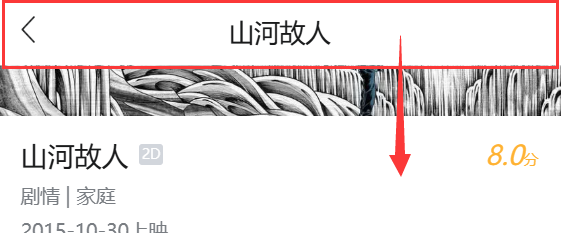
image-20251228215933272

3.3 折叠|展开

1
2
3
4
5
6
7
8
9
10
11
12
13
14
15
16
17
18
19
20
21
22
23
24
25
26
27
28
29
30
31
32
33
34
35
36
37
38
<template>
<!-- v-if 解决http请求还未有数据响应时默认取值问题 -->
<div v-if="filmInfo">
...
<div class="content">
<div>{{ filmInfo.name }}</div>
<div>
...
<!-- 静态class和动态绑定的:class 会共存! style 也同理 -->
<div class="detail-text" :class="isHidden ? 'hidden' : ''" style="line-height: 20px">
{{ filmInfo.synopsis }}
</div>
<div style="text-align: center">
<!-- 动态绑定:class与静态共存,控制字体图标的切换显示 -->
<i class="iconfont" :class="isHidden ? 'icon-down' : 'icon-up'" @click="isHidden = !isHidden"></i>
</div>
</div>
</div>
</div>
</template>

<script>
export default {
data() {
return {
isHidden: true,
}
}
}
</script>

<style lang="scss" scoped>
.hidden {
overflow: hidden;
height: 1.25rem;
}
</style>

image-20251228215831651


09-vue组件库&工具库&交互集
https://janycode.github.io/2018/05/22/04_大前端/04_Vue/09-vue组件库&工具库&交互集/
作者
Jerry(姜源)
发布于
2018年5月22日
许可协议