参考:
1. 项目搭建 小布旅购助手 项目搭建 :全局配置和一级路由配置,底部导航对应页面 title 配置。
① 通过 js 基础模版创建项目,选择自己注册好的小程序。
② 删除 utils 目录、清空 pages 目录
③ 清空 app.js
1 2 3 4 5 App ({onLaunch (
④ 定义底部选项卡,通过 app.json - pages
1
2
3
4
5
6
"pages" : [ "pages/home/home" , "pages/category/category" , "pages/shopcar/shopcar" , "pages/center/center" ] ,
⑤ 配置顶部颜色和信息,通过 app.json -window
1
2
3
4
5
6
"window" : { "navigationBarTextStyle" : "white" , "navigationBarTitleText" : "小布旅购助手" , "navigationBarBackgroundColor" : "#14c145" , "backgroundTextStyle" : "light" } ,
⑥ 配置底部选项卡高亮图片切换(阿里iconfont矢量图标 ),通过 app.json - tabBar
1
2
3
4
5
6
7
8
9
10
11
12
13
14
15
16
17
18
19
20
21
22
23
24
25
26
27
28
"tabBar" : { "list" : [ { "pagePath" : "pages/home/home" , "text" : "首页" , "iconPath" : "images/home.png" , "selectedIconPath" : "images/home_light.png" } , { "pagePath" : "pages/category/category" , "text" : "分类" , "iconPath" : "images/category.png" , "selectedIconPath" : "images/category_light.png" } , { "pagePath" : "pages/shopcar/shopcar" , "text" : "购物车" , "iconPath" : "images/shopcar.png" , "selectedIconPath" : "images/shopcar_light.png" } , { "pagePath" : "pages/center/center" , "text" : "我的" , "iconPath" : "images/center.png" , "selectedIconPath" : "images/center_light.png" } ] } ,
2. restful 接口 json-server 通过 json 文件 mock 数据,模拟 restful 接口。
参考文档:https://rtool.cn/jsonserver/docs/introduction
模拟数据:json-server -w db.json -p 5000
请求地址:http://localhost:5000/xxx
3. request 封装+ loading request.js 封装 Promise 风格请求方式工具 ,可以很方便链式调用。
import request from '[path]/utils/request' JS 模块导入方式
wx.showLoading | wx.hideLoading 显示 或 隐藏请求的 loading 框
1 2 3 4 5 6 7 8 9 10 11 12 13 14 15 16 17 18 19 20 21 22 23 24 25 26 var BASE_URL = "http://localhost:5000" function request (params ) {showLoading ({ title : '正在加载中' })return new Promise ((resolve, reject ) => {request ({url : BASE_URL + params.url , success : (res ) => {resolve (res.data )fail : (err ) => {reject (err)complete : () => {hideLoading ({ success : (res ) => { } })module .exports = request
1
2
3
4
5
6
7
8
9
10
11
12
13
14
15
16
17
18
import request from '../../utils/request' Page ({data : {},handleGetTap (request ({ url : "/users" }).then ((res ) => {console .log (res);handlePostTap (request ({ url : '/users' }).then (res =>console .log (res);catch (err =>console .error (err);
4. 首页 【使用扩展组件】
初始化 npm:npm init - 初始化生成 package.json
安装 sticky:npm i @miniprogram-component-plus/sticky
构建 npm:【工具】-【构建npm】 (否则引入会报错)
引入 sticky:https://developers.weixin.qq.com/miniprogram/dev/platform-capabilities/extended/component-plus/sticky.html
-> 375宽度的机型上不生效,原因未知,可能是组件库BUG(验证过非 边缘像素计算临界值问题)
微信团队扩展组件:https://developers.weixin.qq.com/miniprogram/dev/platform-capabilities/extended/component-plus/
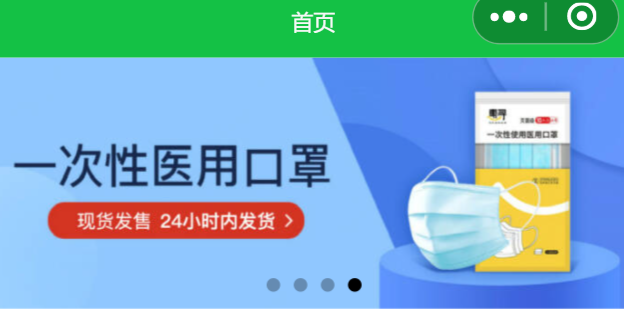
轮播 首页轮播 :优化request封装同时暴露基地址、轮播组件中拼接基地址、基地址挂载到全局对象的方式和使用
utils/request.js
1 2 3 4 5 6 7 8 9 10 11 12 13 14 15 16 17 18 19 20 21 22 23 24 25 26 27 28 const BASE_URL = "http://localhost:5000" ;function request (params ) {showLoading ({ title : '正在加载中' })return new Promise ((resolve, reject ) => {request ({url : BASE_URL + params.url , success : (res ) => {resolve (res.data )fail : (err ) => {reject (err)complete : () => {hideLoading ({ success : (res ) => { } })module .exports = {BASE_URL
app.js
1 2 3 4 5 6 7 8 9 10 11 import { BASE_URL } from './utils/request' App ({onLaunch (this .globalData = {BASE_URL : BASE_URL
pages/home/home.js
1
2
3
4
5
6
7
8
9
10
11
12
13
14
15
16
17
18
19
20
21
22
23
24
25
26
27
28
29
30
31
32
33
34
35
36
import {request} from '../../utils/request' Page ({data : {BASE_URL : '' ,looplist : []onLoad (options ) {this .setData ({BASE_URL : getApp ().globalData .BASE_URL this .renderSwiper ()renderSwiper (request ({ url : '/recommends' }).then (res =>console .log (res);this .setData ({looplist : rescatch (err =>console .error (err);
1 2 3 4 5 6 <swiper indicator-dots ="{{true}}" circular ="{{true}}" autoplay ="{{true}}" interval ="2000" > <swiper-item wx:for ="{{looplist}}" wx:key ="index" > <image src ="{{BASE_URL + item.url}}" mode ="widthFix" /> </swiper-item > </swiper >
列表+懒加载 首页列表 :商品列表请求和渲染展示、列表滚动到底懒加载处理、下拉刷新逻辑
1 2 3 4 5 6 7 <view wx:for ="{{goodlist}}" wx:key ="index" class ="goodbox" > <image src ="{{BASE_URL + item.poster}}" mode ="widthFix" /> <view > {{item.title}}</view > <view > 价格:<text style ="color: red" > ¥{{item.price}}</text > </view > <view > 好评率:{{item.goodcomment}}</view > </view >
1
2
3
4
5
6
7
8
9
10
11
12
13
14
15
16
17
18
19
20
21
22
23
24
25
26
27
28
29
30
31
32
33
34
35
36
37
38
39
40
41
42
43
44
45
46
47
48
49
50
51
52
53
54
55
import {request} from '../../utils/request' Page ({data : {BASE_URL : '' ,looplist : [],goodlist : [],currentPage : 1 ,goodTotal : 0 onLoad (options ) {this .setData ({BASE_URL : getApp ().globalData .BASE_URL this .renderGoods () renderGoods (request ({ url : `/goods?_page=${this .data.currentPage} ` }).then (res =>console .log (res.data ); this .setData ({goodlist : [...this .data .goodlist , ...res.data ],goodTotal : res.items catch (err =>console .error (err);onReachBottom (console .log (this .data .goodlist .length , this .data .goodTotal );if (this .data .goodlist ?.length === this .data .goodTotal ) {console .log ("滚动到底了..." );return this .setData ({currentPage : this .data .currentPage + 1 this .renderGoods ()
下拉刷新更新数据:
1
2
3
4
5
{ "usingComponents" : { } , "navigationBarTitleText" : "首页" , "enablePullDownRefresh" : true }
1 2 3 4 5 6 7 8 9 10 11 onPullDownRefresh (setTimeout (() => {console .log ("下拉更新数据了" );stopPullDownRefresh () 1000 )
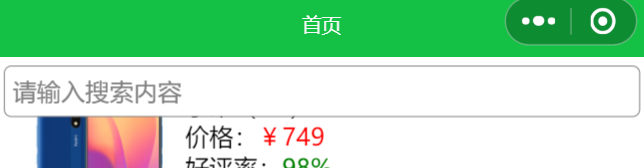
搜索+吸顶 搜索和吸顶 :自定义组件搜索输入框,吸顶引入扩展组件 sticky 使用
components/search/search.xx
1 2 <input placeholder ="请输入搜索内容" bindtap ="handleTap" />
1 2 3 4 5 6 7 8 Component ({methods : {handleTap (this .triggerEvent ("SearchEvent" )
1 2 3 4 5 6 7 8 9 input {border : 1 rpx solid gray;border-radius : 10 rpx;margin : 10 rpx;padding : 10 rpx;height : 30 rpx;background-color : white;
pages/home/home.xx
1
2
3
4
5
6
7
8
{ "usingComponents" : { "mysearch" : "../../components/search/search" , "mp-sticky" : "@miniprogram-component-plus/sticky" } , "navigationBarTitleText" : "首页" , "enablePullDownRefresh" : true }
1 2 3 4 5 6 7 <mp-sticky offset-top ="0" > <view style ="width: 100vw" > <mysearch bindSearchEvent ="handleSearchEvent" > </mysearch > </view > </mp-sticky >
页面跳转+带参 页面跳转带参 :商品列表页绑定点击事件,携带多个参数到详情页面,详情页解析参数并设置自己的导航栏标题
wx.navigateTo() 直接跳转到【目标页】wx.redirectTo() 关闭当前页面再跳转到目标页wx.switchTab() 跳转【底部选项卡】页wx.setNavigationBarTitle({ title: '' }) 设置当前页顶部导航栏的标题
pages/home/home.xx
1 2 3 4 5 <view wx:for ="{{goodlist}}" wx:key ="index" class ="goodbox" bindtap ="handleGoToDetail" data-id ="{{item.id}}" data-title ="{{item.title}}" > </view >
1
2
3
4
5
6
7
8
9
10
11
12
13
14
15
import { request } from '../../utils/request' Page ({handleGoToDetail (evt ) {var id = evt.currentTarget .dataset .id var title = evt.currentTarget .dataset .title console .log (id, title);navigateTo ({ url : `/pages/detail/detail?id=${id} &title=${title} ` ,
app.json
1
2
3
4
5
6
7
{ "pages" : [ "pages/home/home" , "pages/detail/detail" ] , }
pages/detail/detail.xx
1 2 3 4 5 6 7 8 9 10 11 12 13 14 15 Page ({onLoad (options ) {console .log (options); setNavigationBarTitle ({title : options.title ,
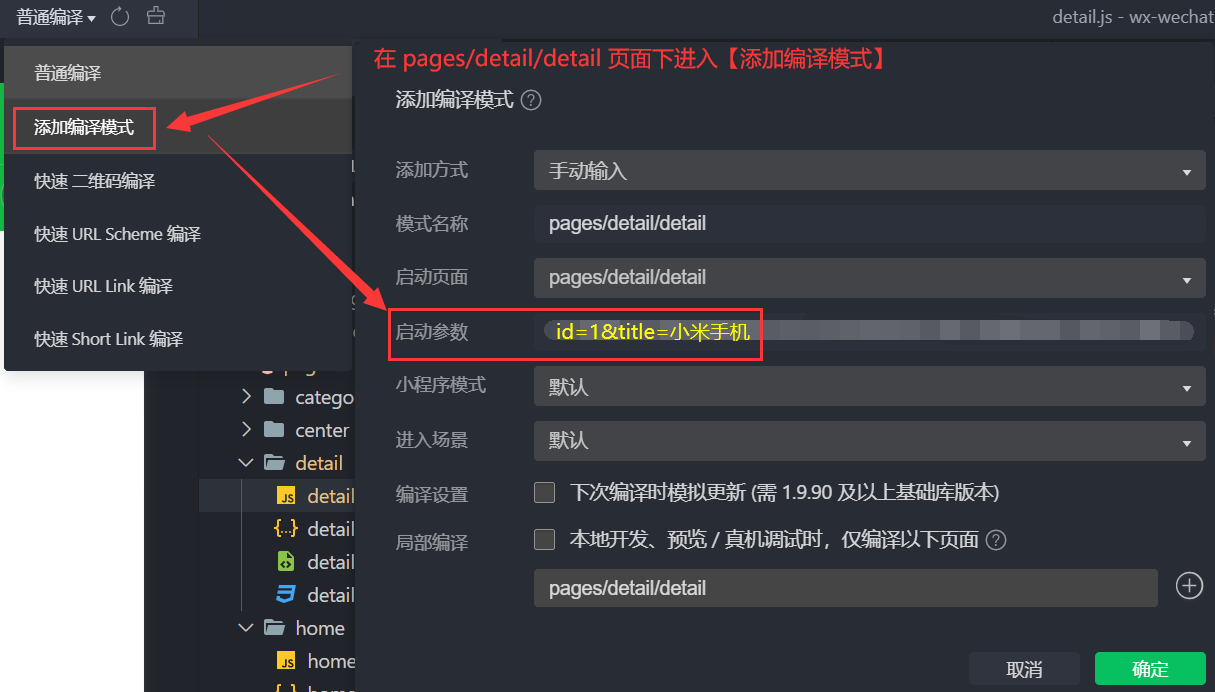
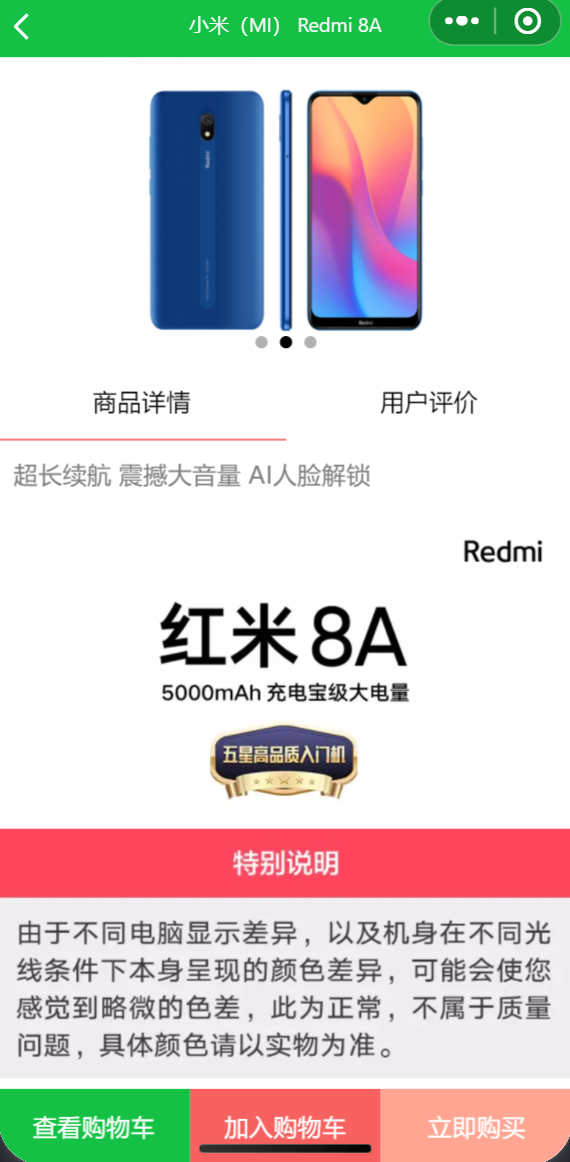
5. 详情页 【添加编译模式】 设置后,后面就只编译这一页,对开发进行时相当友好。
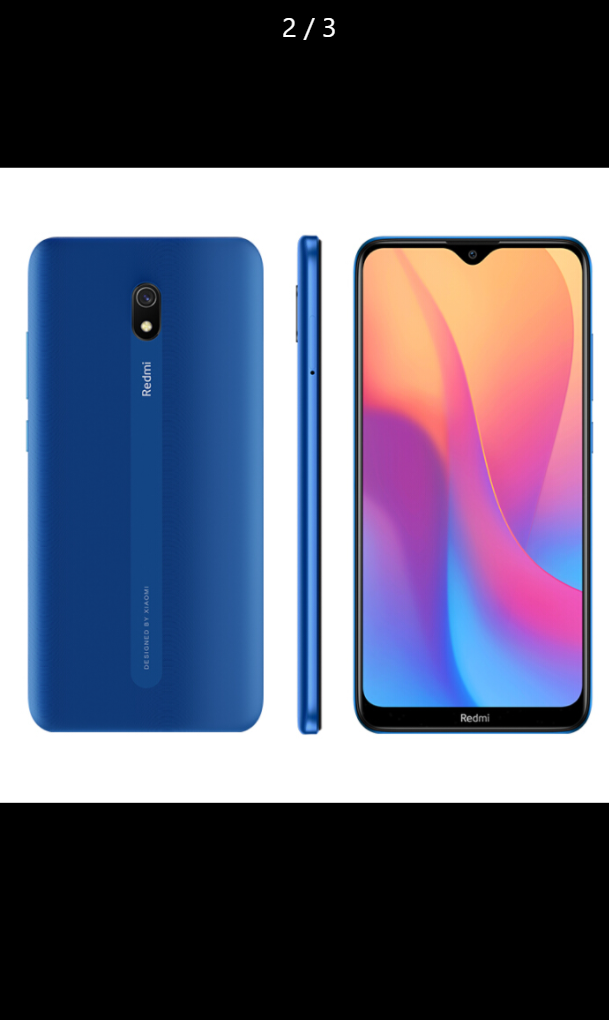
轮播+全屏预览 轮播和全屏预览 :详情页轮播图、原生方法全屏预览轮播图
wx.previewImage({ }) 全屏预览图片
1 2 3 4 5 6 7 8 <swiper indicator-dots ="{{true}}" circular ="{{true}}" autoplay ="{{true}}" interval ="2000" > <swiper-item wx:for ="{{info.slides}}" wx:key ="index" > <image src ="{{BASE_URL + item}}" mode ="aspectFit" bindtap ="handleFullScreenTap" data-current ="{{BASE_URL + item}}" /> </swiper-item > </swiper >
1 2 3 4 5 6 7 8 width : 100% ;height : 200px ;height : 200px ;
1
2
3
4
5
6
7
8
9
10
11
12
13
14
15
16
17
18
19
20
21
22
23
24
25
26
27
28
29
30
31
32
33
34
35
36
37
38
39
40
41
42
43
44
const { request, BASE_URL } = require ("../../utils/request" );Page ({data : {BASE_URL : '' ,info : null onLoad (options ) {this .setData ({BASE_URL : getApp ().globalData .BASE_URL console .log (options); setNavigationBarTitle ({title : options.title ,this .getGoodDetailById (options.id )getGoodDetailById (id ) {request ({url : `/goods/${id} ` then (res =>console .log (res);this .setData ({info : rescatch (err =>console .error (err);handleFullScreenTap (evt ) {previewImage ({current : evt.currentTarget .dataset .current , urls : this .data .info .slides .map (item =>BASE_URL + `${item} ` )
详情 商品详情 :页内导航和高亮处理、吸顶效果、商品详情遍历
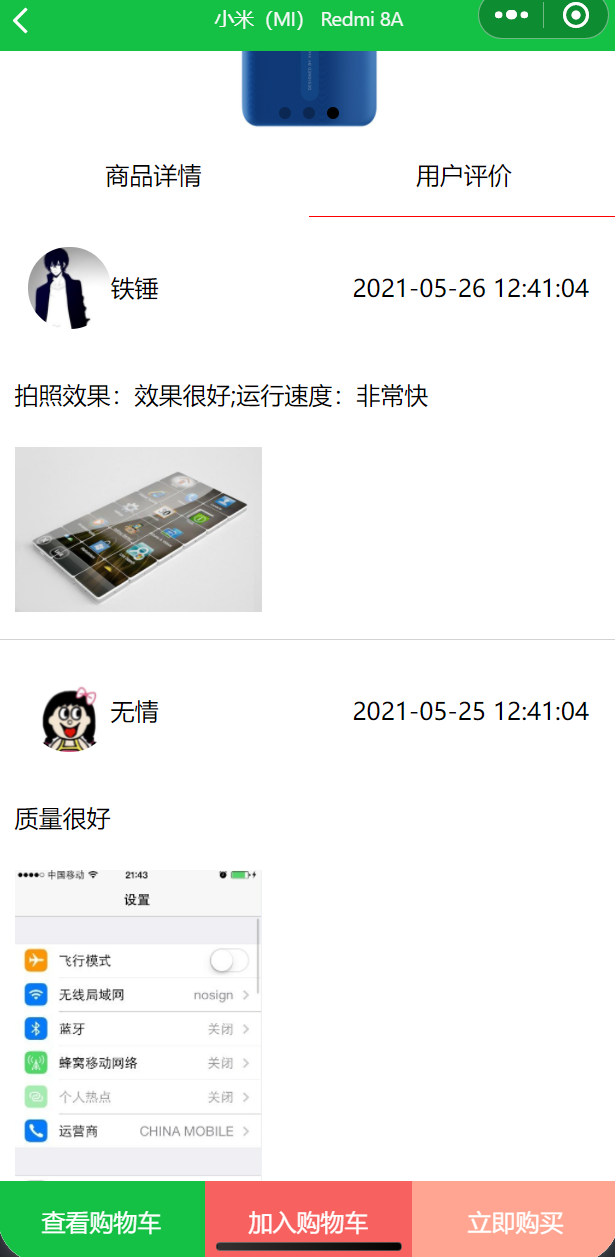
1 2 3 4 5 6 7 8 9 10 11 12 13 14 15 16 17 18 19 20 21 22 23 24 25 26 27 28 29 30 31 32 33 34 35 36 37 38 39 40 41 <swiper indicator-dots ="{{true}}" circular ="{{true}}" autoplay ="{{true}}" interval ="2000" > <swiper-item wx:for ="{{info.slides}}" wx:key ="index" > <image src ="{{BASE_URL + item}}" mode ="aspectFit" bindtap ="handleFullScreenTap" data-current ="{{BASE_URL + item}}" /> </swiper-item > </swiper > <mp-sticky offset-top ="0" > <view class ="detailtabbar" style ="width: 100vw;" > <view class ="{{current === 0 ? 'active' : ''}}" bindtap ="handleActive" data-index ="{{0}}" > 商品详情</view > <view class ="{{current === 1 ? 'active' : ''}}" bindtap ="handleActive" data-index ="{{1}}" > 用户评价</view > </view > </mp-sticky > <view wx:if ="{{current === 0}}" > <view style ="color: gray; margin: 10px;" > {{info.feature}}</view > <image wx:for ="{{info.desc}}" src ="{{item}}" mode ="widthFix" style ="width: 100%;" /> </view > <view wx:else > <view wx:for ="{{comments}}" wx:key ="index" style ="border-bottom: 1px solid lightgray;" > <view class ="user" > <image src ="{{BASE_URL + item.userImageUrl}}" mode ="widthFix" class ="left" /> <view class ="left" > {{item.nickname}}</view > <view class ="right" > {{item.creationTime}}</view > </view > <view class ="content" > {{item.content}}</view > <view class ="content" > <image src ="{{BASE_URL + item.imgUrl}}" mode ="widthFix" /> </view > </view > </view > <view class ="bottom" > <view style ="background-color: #14c145;" > 查看购物车</view > <view style ="background-color: #F76260;" > 加入购物车</view > <view style ="background-color: #ffa591;" > 立即购买</view > </view >
1
2
3
4
5
{ "usingComponents" : { "mp-sticky" : "@miniprogram-component-plus/sticky" } }
1 2 3 4 5 6 7 8 9 10 11 12 13 14 15 16 17 18 19 20 21 22 23 24 25 26 27 28 29 30 31 32 33 34 35 36 37 38 39 40 41 42 43 44 45 46 47 48 49 50 51 52 53 54 55 56 57 58 59 60 61 62 63 64 65 66 width : 100% ;height : 200px ;height : 200px ;.detailtabbar {display : flex;flex-direction : row;text-align : center;height : 100 rpx;line-height : 100 rpx;background-color : white;.detailtabbar view {flex : 1 ;.detailtabbar .active {border-bottom : 1px solid red;.user {overflow : hidden;padding : 20px ;.user .left {float : left;height : 100 rpx;line-height : 100 rpx;.user image {width : 100 rpx;border-radius : 50 rpx;.user .right {float : right;height : 100 rpx;line-height : 100 rpx;.content {padding : 20 rpx;.content image {width : 300 rpx;.bottom {height : 100 rpx;line-height : 100 rpx;text-align : center;position : fixed;left : 0 ;bottom : 0 ;display : flex;flex-direction : row;justify-content : space-around;width : 100% ;.bottom view{flex : 1 ;color : white;
1
2
3
4
5
6
7
8
9
10
11
12
13
14
15
16
17
18
19
20
21
22
23
24
25
26
27
28
29
30
31
32
33
34
35
36
37
38
39
40
41
42
43
44
45
46
47
48
49
50
51
52
53
54
55
56
57
58
59
60
61
62
63
64
65
66
67
68
69
70
71
72
73
74
75
76
const { request, BASE_URL } = require ("../../utils/request" );Page ({data : {BASE_URL : '' ,info : null ,current : 0 ,comments : []onLoad (options ) {this .setData ({BASE_URL : getApp ().globalData .BASE_URL console .log (options); setNavigationBarTitle ({title : options.title ,this .getGoodDetailById (options.id )this .getGoodComment ()getGoodDetailById (id ) {request ({url : `/goods/${id} ` then (res =>console .log (res);this .setData ({info : rescatch (err =>console .error (err);handleFullScreenTap (evt ) {previewImage ({current : evt.currentTarget .dataset .current , urls : this .data .info .slides .map (item =>BASE_URL + `${item} ` ) handleActive (evt ) {this .setData ({current : evt.currentTarget .dataset .index getGoodComment (request ({url : "/comments" then (res =>console .log (res);this .setData ({comments : rescatch (err =>console .log (err);
评价 商品用户评价 :评价内容请求、列表布局、底部固定3个按钮布局
代码同上。
6. 搜索模块 【使用 WeUI】 官方文档:https://wechat-miniprogram.github.io/weui/docs/
通过 useExtendedLib 扩展库 的方式引入,这种方式引入的组件将不会计入代码包大小。
可以通过npm 方式下载构建,npm包名为weui-miniprogram
app.json - 使用第 1 种方式引入,只需要添加一个配置即可
1
2
3
4
5
6
{ "useExtendedLib" : { "weui" : true } }
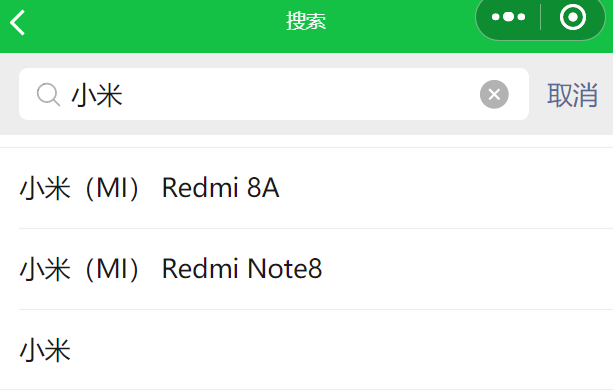
搜索框 SearchBar 参考文档:https://wechat-miniprogram.github.io/weui/docs/search.html
pages/search/search.xx
1
2
3
4
5
6
{ "usingComponents" : { "mp-searchbar" : "weui-miniprogram/searchbar/searchbar" } , "navigationBarTitleText" : "搜索" }
1 2 3 <mp-searchbar bindselectresult ="handleSearchResult" search ="{{search}}" > </mp-searchbar >
1
2
3
4
5
6
7
8
9
10
11
12
13
14
15
16
17
18
19
20
21
22
23
24
25
26
27
28
29
30
31
32
33
34
35
36
37
38
39
40
41
42
43
44
45
46
const { request } = require ("../../utils/request" );Page ({data : {search : '' onLoad (options ) {this .setData ({search : this .search .bind (this ) search (value ) {return Promise .all ([request ({ url : `/goods` }),request ({ url : `/categories` })then (res =>console .log (res[0 ], res[1 ]);var goodsTitles = res[0 ].filter (item =>title .includes (value)).map (item =>return { ...item, text : item.title , type : 1 }var categoriesTitles = res[1 ].filter (item =>title .includes (value)).map (item =>return { ...item, text : item.title , type : 2 }return [...goodsTitles, ...categoriesTitles]handleSearchResult (e ) {console .log (e.detail ); var { type, id, title } = e.detail .item if (type === 1 ) {console .log ("详情页面" );navigateTo ({url : `/pages/detail/detail?id=${id} &title=${title} ` else {console .log ("搜索列表" );navigateTo ({url : `/pages/searchlist/searchlist?id=${id} &title=${title} `
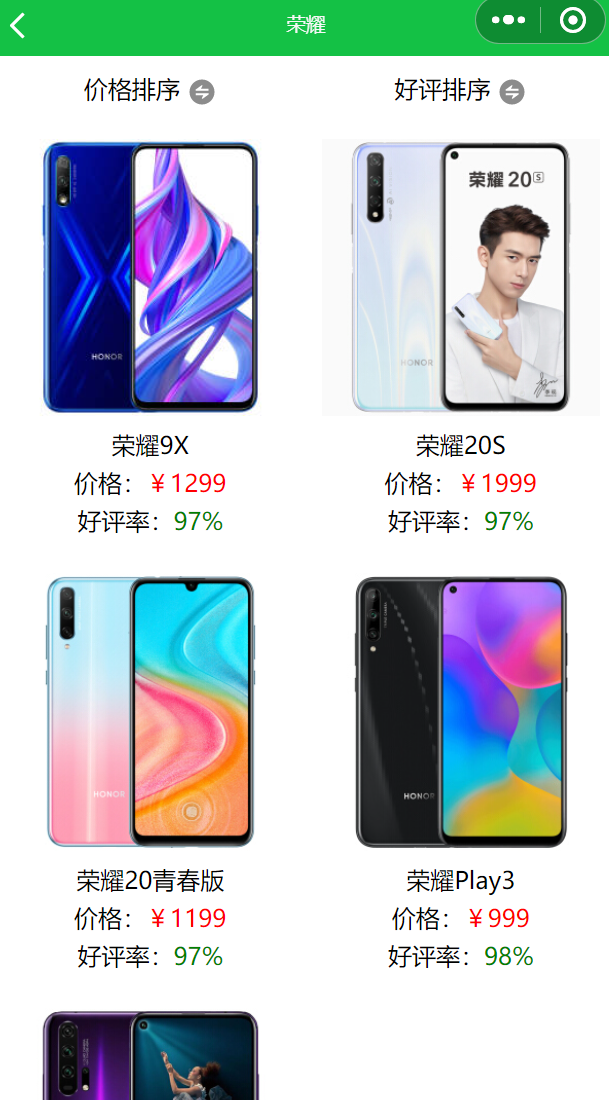
搜索列表 和 排序 搜索列表和排序 :列表布局、详情页跳转、图标引入、价格排序和评价排序
1 2 3 4 5 6 7 8 9 <view class ="goodcontainer" > <view wx:for ="{{goodlist}}" wx:key ="index" class ="good" bindtap ="handleGoToDetail" data-id ="{{item.id}}" data-title ="{{item.title}}" > <image src ="{{BASE_URL + item.poster}}" mode ="widthFix" /> <view > {{item.title}}</view > <view > 价格:<text style ="color: red" > ¥{{item.price}}</text > </view > <view > 好评率:<text style ="color: green" > {{item.goodcomment}}</text > </view > </view > </view >
1
2
3
4
5
{ "usingComponents" : { "mp-icon" : "weui-miniprogram/icon/icon" } }
1 2 3 4 5 6 7 8 9 10 11 12 13 14 15 16 17 18 19 20 21 22 .goodcontainer {display : flex;flex-wrap : wrap;.good {width : 50% ;padding : 20 rpx;box-sizing : border-box;text-align : center;.good image{width : 100% ;.sort-header {display : flex;flex-direction : row;justify-content : space-around;height : 80 rpx;line-height : 80 rpx;
1
2
3
4
5
6
7
8
9
10
11
12
13
14
15
16
17
18
19
20
21
22
23
24
25
26
27
28
29
30
31
32
33
34
35
36
37
38
39
40
41
42
43
44
45
46
47
48
49
50
51
52
53
54
55
56
57
58
59
60
61
62
63
64
65
66
67
68
69
const { request } = require ("../../utils/request" );Page ({data : {BASE_URL : '' ,goodlist : [],priceOrder : true ,commentOrder : true onLoad (options ) {this .setData ({BASE_URL : getApp ().globalData .BASE_URL console .log (options); setNavigationBarTitle ({title : options.title this .getList (options.id )getList (id ) {request ({url : `/categories?id=${id} &_embed=goods` then (res =>console .log (res[0 ]); this .setData ({goodlist : res[0 ].goods catch (err =>console .error (err);handleGoToDetail (evt ) {var { id, title } = evt.currentTarget .dataset navigateTo ({url : `/pages/detail/detail?id=${id} &title=${title} ` handlePriceOrder (console .log (this .data .priceOrder );this .setData ({priceOrder : !this .data .priceOrder ,goodlist : this .data .priceOrder this .data .goodlist .sort ((x, y ) => y.price - x.price )this .data .goodlist .sort ((x, y ) => x.price - y.price )handleCommentOrder (console .log (this .data .commentOrder );this .setData ({commentOrder : !this .data .commentOrder ,goodlist : this .data .commentOrder this .data .goodlist .sort ((x, y ) => parseInt (y.goodcomment ) - parseInt (x.goodcomment ))this .data .goodlist .sort ((x, y ) => parseInt (x.goodcomment ) - parseInt (y.goodcomment ))
7. 分类模块
官方的扩展组件文档没有使用 demo,需要结合源码查看
扩展组件:https://developers.weixin.qq.com/miniprogram/dev/platform-capabilities/extended/component-plus/
源码示例:https://github.com/wechat-miniprogram/miniprogram-component-plus
源码 demo位置:/tools/demo/example/xxx,如 vtabs 在 /tools/demo/example/vtabs/…
或者通过该链接地址直接通过浏览器打开 微信开发工具 :https://developers.weixin.qq.com/s/SG4tK2mD77f7
vtabs 组件 vtabs 纵向选项卡组件 ,需与 <vtabs-content> 组件结合使用。
安装:npm i @miniprogram-component-plus/vtabs @miniprogram-component-plus/vtabs-content - 安装完 工具-构建npm
引入:pages/category/category.json
1
2
3
4
5
6
7
{ "usingComponents" : { "mp-vtabs" : "@miniprogram-component-plus/vtabs" , "mp-vtabs-content" : "@miniprogram-component-plus/vtabs-content" } , "navigationBarTitleText" : "分类" }
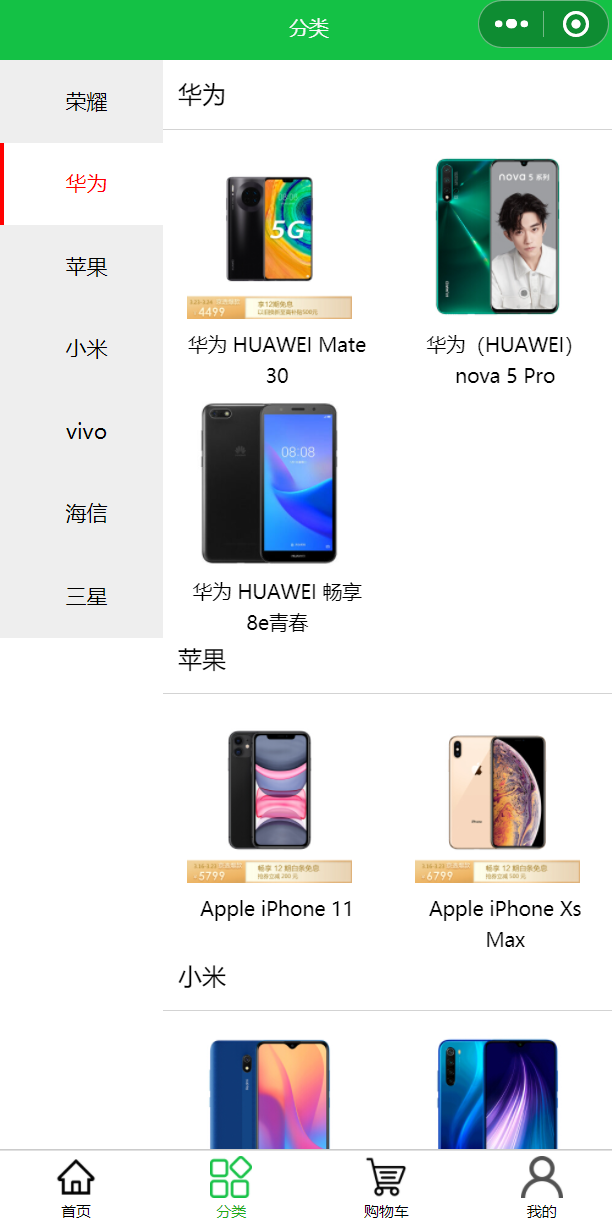
分类页面 :vtabs组件源码demo分析和使用、样式高度问题处理、跳转详情处理
1 2 3 4 5 6 7 8 9 10 11 12 13 14 <mp-vtabs vtabs ="{{vtabs}}" activeTab ="{{activeTab}}" bindtabclick ="onTabCLick" bindchange ="onChange" class ="test" > <block wx:for ="{{vtabs}}" wx:key ="title" > <mp-vtabs-content tabIndex ="{{index}}" > <view class ="item-title" > {{item.title}}</view > <view class ="vtabs-content-item" > <view wx:for ="{{item.goods}}" wx:key ="id" class ="item" bindtap ="handleGoodTap" data-id ="{{item.id}}" data-title ="{{item.title}}" > <image src ="{{BASE_URL + item.poster}}" mode ="widthFix" /> <view > {{item.title}}</view > </view > </view > </mp-vtabs-content > </block > </mp-vtabs >
1 2 3 4 5 6 7 8 9 10 11 12 13 14 15 16 17 18 19 20 21 22 23 24 25 26 27 28 29 background-color : #FFFFFF ;height : 100% ;.item-title {padding : 10px ;border-bottom : 1px solid lightgray;.vtabs-content-item {display : flex;flex-wrap : wrap;.vtabs-content-item .item {width : 50% ;height : 300 rpx; padding : 30 rpx;box-sizing : border-box;.item image {width : 200 rpx;.item view {font-size : 13px ;text-align : center;
1
2
3
4
5
6
7
8
9
10
11
12
13
14
15
16
17
18
19
20
21
22
23
24
25
26
27
28
29
30
31
32
33
34
35
36
37
38
39
40
41
const { request } = require ("../../utils/request" )Page ({data : {BASE_URL : '' ,vtabs : [],activeTab : 0 onLoad (options ) {this .setData ({BASE_URL : getApp ().globalData .BASE_URL request ({ url : "/categories?_embed=goods" }).then (res =>console .log (res);this .setData ({vtabs : rescatch (err =>console .error (err);onTabCLick (e ) {const index = e.detail .index console .log ('tabClick' , index)onChange (e ) {const index = e.detail .index console .log ('change' , index)handleGoodTap (evt ) {const { id, title } = evt.currentTarget .dataset console .log (id, title);navigateTo ({ url : `/pages/detail/detail?id=${id} &title=${title} ` })
8. 授权模块(★) 模拟本地存储/删除 token:
1 2 wx.setStorageSync("token" , {name: "jerry" })"token" )
微信授权与手机号绑定 :微信授权流程、手机号绑定页面逻辑、购物车页auth拦截、个人中心页auth拦截
微信授权 获取用户信息:https://developers.weixin.qq.com/miniprogram/dev/api/open-api/user-info/wx.getUserProfile.html
获取用户头像和昵称:https://developers.weixin.qq.com/miniprogram/dev/framework/open-ability/userProfile.html
1 2 <button type ="primary" bindtap ="handleAuth" > 微信授权</button >
1 2 3 4 5 6 7 8 9 10 11 12 13 14 15 16 Page ({handleAuth (getUserProfile ({desc : '用于完善会员资料' , success : (res ) => {console .log (res);var { userInfo } = ressetStorageSync ("token" , userInfo)navigateTo ({ url : '/pages/telform/telform' })
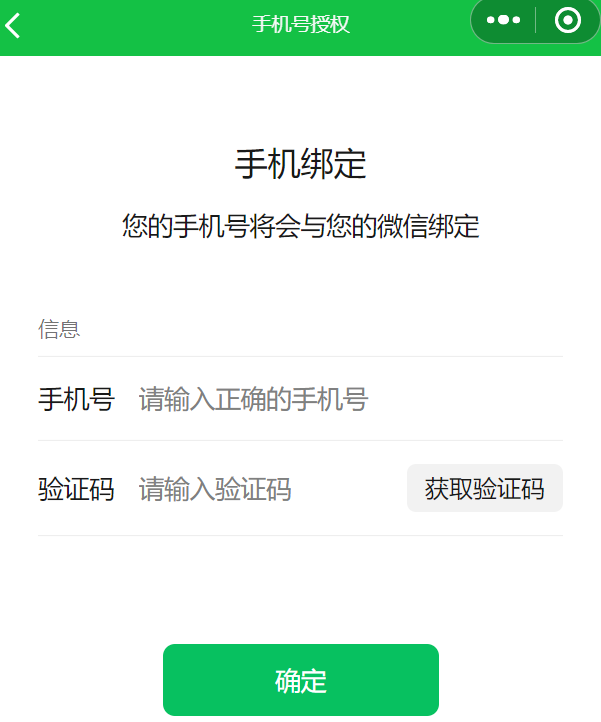
手机绑定 WeUI FormPage组件:https://wechat-miniprogram.github.io/weui/docs/form-page.html
WeUI Cells组件:https://wechat-miniprogram.github.io/weui/docs/cells.html
1
2
3
4
5
6
7
8
9
{ "usingComponents" : { "mp-form-page" : "weui-miniprogram/form-page/form-page" , "mp-form" : "weui-miniprogram/form/form" , "mp-cells" : "weui-miniprogram/cells/cells" , "mp-cell" : "weui-miniprogram/cell/cell" } , "navigationBarTitleText" : "手机号授权" }
1 2 3 4 5 6 7 8 9 10 11 12 13 14 15 16 17 <mp-form-page title ="手机绑定" subtitle ="您的手机号将会与您的微信绑定" > <mp-cells title ="信息" > <mp-cell prop ="mobile" title ="手机号" required ext-class =" weui-cell_vcode" > <input bindinput ="formInputMobile" data-field ="mobile" class ="weui-input" placeholder ="请输入正确的手机号" /> </mp-cell > <mp-cell prop ="mobile" title ="验证码" ext-class =" weui-cell_vcode" > <input bindinput ="formInputCode" class ="weui-input" placeholder ="请输入验证码" value ="{{code}}" /> <view slot ="footer" class ="weui-vcode-btn" bindtap ="formRequestCode" > 获取验证码</view > </mp-cell > </mp-cells > <view slot ="button" > <button class ="weui-btn" type ="primary" bindtap ="submitForm" > 确定</button > </view > </mp-form-page >
1
2
3
4
5
6
7
8
9
10
11
12
13
14
15
16
17
18
19
20
21
22
23
24
25
26
27
28
29
30
31
32
33
34
35
36
37
38
39
40
41
42
43
44
45
46
47
48
49
50
51
52
53
54
55
56
57
58
59
60
61
62
63
64
65
66
67
68
69
70
71
72
73
74
75
76
77
78
79
80
81
82
83
84
85
86
87
import { request } from "../../utils/request" ;Page ({data : {tel : '' ,code : '' formInputMobile (evt ) {console .log ("手机号=" , evt.detail .value );this .setData ({ tel : evt.detail .value })formInputCode (evt ) {console .log ("验证码=" , evt.detail .value );formRequestCode (if (this .data .tel === '' ) {showToast ({title : '请输入手机号' ,icon : 'fail' ,duration : 2000 return else {if (this .data .tel .length != 11 ) {showToast ({title : '请输入正确的手机号' ,icon : 'fail' ,duration : 2000 return else {showToast ({title : '测试验证码1234' ,icon : 'success' ,duration : 2000 this .setData ({ code : '1234' }) submitForm (if (this .data .code === '' || this .data .code .length != 4 ) {showToast ({title : '请输入验证码' ,icon : 'fail' ,duration : 2000 return setStorageSync ("tel" , this .data .tel )var userInfo = wx.getStorageSync ("token" )request ({url : `/users?tel=${this .data.tel} &nickName=${userInfo.nickName} ` then (res =>console .log (res);if (res.length === 0 ) {request ({url : "/users" ,method : "post" ,data : {tel : this .data .tel then (res =>console .log ("1111" );navigateBack ({ delta : 2 }) else {console .log ("2222" );navigateBack ({ delta : 2 }) catch (err =>console .error (err);
1
2
3
4
5
6
7
8
9
10
11
12
13
function checkAuth (callback ) {if (wx.getStorageSync ('tel' )) {callback () else {if (wx.getStorageSync ('token' )) {navigateTo ({ url : '/pages/telform/telform' }) else {navigateTo ({ url : '/pages/auth/auth' }) export default checkAuth
购物车与个人中心 auth 拦截 1 2 3 4 5 6 7 8 9 10 import checkAuth from "../../utils/authTool" ;Page ({onShow (checkAuth (() => {console .log ("进入购物车" );
1
2
3
4
5
6
7
8
9
10
import checkAuth from "../../utils/authTool" ;Page ({onShow (checkAuth (() => {console .log ("进入我的" );
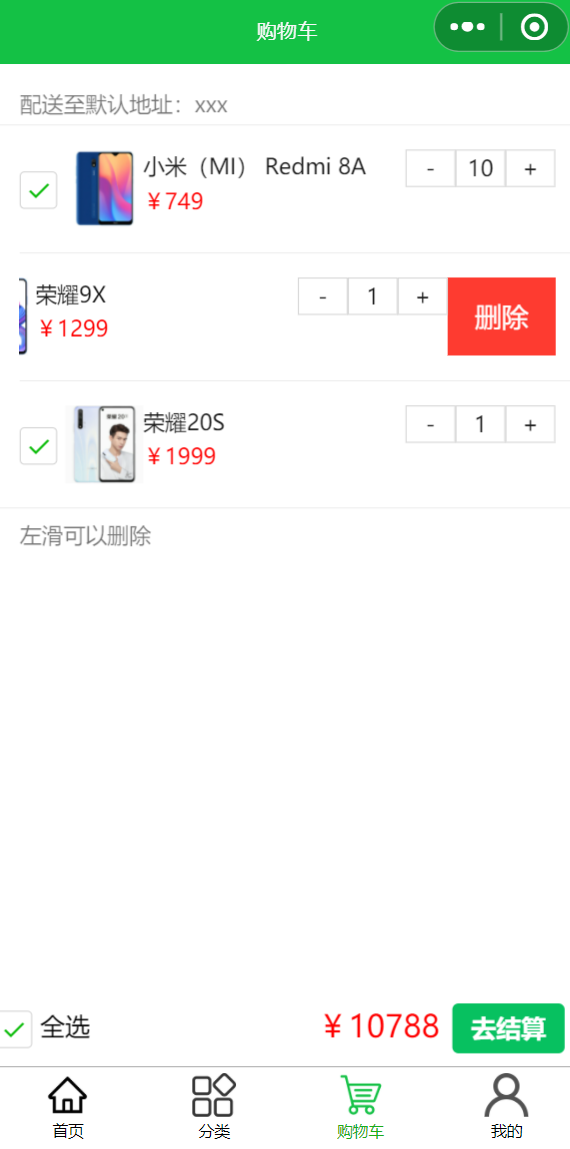
9. 购物车模块 购物车模块 :详情页按钮加入购物车、购物车布局、数据渲染、金额计算、左滑删除、全选与反选
引入:mp-slideview
1 2 3 4 5 6 7 8 { "usingComponents" : { "mp-cells" : "weui-miniprogram/cells/cells" , "mp-cell" : "weui-miniprogram/cell/cell" , "mp-slideview" : "weui-miniprogram/slideview/slideview" } , "navigationBarTitleText" : "购物车" }
1 2 3 4 5 6 7 8 9 10 11 12 13 14 15 16 17 18 19 20 21 22 23 24 25 26 27 28 29 30 31 32 33 34 35 36 37 38 39 40 <mp-cells title ="配送至默认地址:xxx" footer ="左滑可以删除" > <mp-cell wx:for ="{{cartlist}}" wx:key ="id" > <mp-slideview buttons ="{{slideButtons}}" bindbuttontap ="slideButtonDeleteTap" data-item ="{{item}}" > <view class ="content" > <view class ="cellcontent" > <checkbox checked ="{{item.checked}}" bindtap ="handleCheckedTap" data-item ="{{item}}" /> <image src ="{{BASE_URL + item.good.poster}}" mode ="aspectFit" /> <view > <view > {{item.good.title}}</view > <view style ="color: red" > ¥{{item.good.price}}</view > </view > </view > <view slot ="footer" class ="cellfooter" > <text bindtap ="handleMinusTap" data-item ="{{item}}" > -</text > <text > {{item.number}}</text > <text bindtap ="handleAddTap" data-item ="{{item}}" > +</text > </view > </view > </mp-slideview > </mp-cell > </mp-cells > <wxs src ="./shopcar.wxs" module ="calObj" > </wxs > <view class ="footer" > <checkbox-group bindchange ="handleAllChecked" > <checkbox checked ="{{isAllChecked}}" /> </checkbox-group > <view > 全选</view > <view style ="position:fixed; right: 180rpx; color: red; font-size: 20px;" > ¥{{calObj.sum(cartlist)}}</view > <button type ="primary" size ="mini" > 去结算</button > </view >
1 2 3 4 5 6 7 8 9 10 11 12 13 14 15 16 17 18 19 20 21 22 23 24 25 26 27 28 29 30 31 32 33 34 35 36 37 38 39 40 .content {display : flex;height : 100 rpx;justify-content : space-between;.cellcontent {display : flex;.cellcontent checkbox {line-height : 100 rpx;.cellcontent image {width : 100 rpx;height : 100 rpx;.cellfooter text{width : 60 rpx;display : inline-block;text-align : center;border : 1px solid lightgray;.footer {position : fixed;left : 0 ;bottom : 0 ;width : 100% ;text-align : center;margin-bottom : 20 rpx;height : 60 rpx;line-height : 60 rpx;background-color : white;display : flex;.footer button {position : fixed;right : 0 ;margin-right : 20 rpx;
1 2 3 4 5 6 7 8 9 10 11 12 13 14 15 16 17 18 19 20 21 22 23 24 25 26 27 28 29 30 31 32 33 34 35 36 37 38 39 40 41 42 43 44 45 46 47 48 49 50 51 52 53 54 55 56 57 58 59 60 61 62 63 64 65 66 67 68 69 70 71 72 73 74 75 76 77 78 79 80 81 82 83 84 85 86 87 88 89 90 91 92 93 94 95 96 97 98 99 100 101 102 103 104 105 106 107 108 109 110 111 112 113 114 115 116 117 118 119 120 121 122 123 124 125 126 127 128 129 130 131 132 133 134 135 136 137 138 139 140 141 142 143 144 145 146 147 148 149 const { default : checkAuth } = require ("../../utils/authTool" );const { request, BASE_URL } = require ("../../utils/request" );Page ({data : {BASE_URL : '' ,slideButtons : [{type : 'warn' ,text : '删除' ,cartlist : [],isAllChecked : false onLoad (options ) {this .setData ({BASE_URL : getApp ().globalData .BASE_URL let { nickName } = wx.getStorageSync ('token' )let tel = wx.getStorageSync ('tel' )console .log (nickName, tel);request ({ url : `/carts?_embed=good&username=${nickName} &tel=${tel} ` }).then (res =>console .log ("cartlist=" , res);this .setData ({cartlist : rescatch (err =>console .error (err);this .setData ({isAllChecked : this .data .cartlist .every (item =>checked === true )slideButtonDeleteTap (evt ) {console .log ('左滑删除触发' , evt);showModal ({title : '提示' ,content : '确定删除该商品吗?' ,success : (res ) => {if (res.confirm ) {let id = evt.currentTarget .dataset .item .id request ({ url : `/carts/${id} ` , method : "delete" }).then (res =>console .log (res);showToast ({title : '删除成功' ,icon : 'success' ,duration : 1500 this .setData ({cartlist : this .data .cartlist .filter (item =>id !== id)handleCheckedTap (evt ) {let item = evt.currentTarget .dataset .item console .log (item);checked = !item.checked this .handleUpdate (item)this .setData ({isAllChecked : this .data .cartlist .every (item =>checked === true )handleUpdate (item ) {this .setData ({cartlist : this .data .cartlist .map (data =>if (data.id === item.id ) {return itemreturn datarequest ({url : `/carts/${item.id} ` ,method : "put" ,data : {username : item.username ,tel : item.tel ,goodId : item.goodId ,number : item.number ,checked : item.checked handleMinusTap (evt ) {let item = evt.currentTarget .dataset .item console .log (item);number --this .handleUpdate (item)handleAddTap (evt ) {let item = evt.currentTarget .dataset .item console .log (item);number ++this .handleUpdate (item)handleAllChecked (evt ) {console .log (evt.detail .value );if (evt.detail .value .length === 0 ) {this .setData ({cartlist : this .data .cartlist .map (item =>checked : false else {this .setData ({cartlist : this .data .cartlist .map (item =>checked : true onShow (checkAuth (() => {console .log ("进入购物车" );
1 2 3 4 5 6 7 8 9 10 11 12 13 14 function sum (list ) {var total = 0 for (var i = 0 ; i < list.length ; i++) {if (list[i].checked ) {good .price * list[i].number return totalmodule .exports = {sum : sum
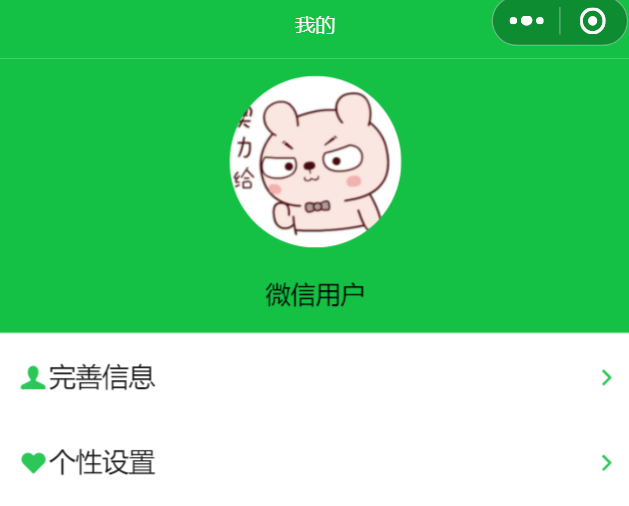
10. 我的模块 布局+换头像 个人中心 :布局、换头像功能
更换头像:https://developers.weixin.qq.com/miniprogram/dev/api/media/video/wx.chooseMedia.html
引入:
1 2 3 4 5 6 7 8 { "usingComponents" : { "mp-cells" : "weui-miniprogram/cells/cells" , "mp-cell" : "weui-miniprogram/cell/cell" , "mp-icon" : "weui-miniprogram/icon/icon" } , "navigationBarTitleText" : "我的" }
1 2 3 4 5 6 7 8 9 10 11 12 13 14 15 16 <view class ="userinfo" > <image src ="https://janycode.github.io/img/avatar.png" mode ="widthFix" bindtap ="handleAvatarChange" /> <view > {{userInfo.nickName}}</view > </view > <view > <mp-cell value ="完善信息" > <mp-icon slot ="icon" type ="field" icon ="me" color ="#14c145" size ="{{20}}" > </mp-icon > <mp-icon slot ="icon" type ="field" icon ="arrow" color ="#14c145" size ="{{10}}" slot ="footer" > </mp-icon > </mp-cell > <mp-cell value ="个性设置" > <mp-icon slot ="icon" type ="field" icon ="like" color ="#14c145" size ="{{20}}" > </mp-icon > <mp-icon slot ="icon" type ="field" icon ="arrow" color ="#14c145" size ="{{10}}" slot ="footer" > </mp-icon > </mp-cell > </view >
1 2 3 4 5 6 7 8 9 10 11 12 13 .userinfo {background-color : #14c145 ;text-align : center;height : 320 rpx;.userinfo image{width : 200 rpx;height : 200 rpx;line-height : 100 rpx;border-radius : 100 rpx;margin : 20 rpx;
1 2 3 4 5 6 7 8 9 10 11 12 13 14 15 16 17 18 19 20 21 22 23 24 25 26 27 28 29 30 31 32 33 34 35 36 37 38 39 40 41 42 43 44 45 46 47 48 49 50 51 52 53 54 import checkAuth from "../../utils/authTool" ;Page ({data : {BASE_URL : '' ,userInfo : null onLoad (options ) {this .setData ({BASE_URL : getApp ().globalData .BASE_URL handleAvatarChange (chooseMedia ({count : 1 , mediaType : ['image' ,'video' ],sourceType : ['album' , 'camera' ],maxDuration : 30 ,camera : 'back' ,success : (res ) => { console .log (res.tempFiles [0 ].tempFilePath )console .log (res.tempFiles [0 ].size )this .setData ({userInfo : {this .data .userInfo ,avatarUrl : res.tempFiles [0 ].tempFilePath setStorageSync ("token" , {getStorageSync ("token" ),avatarUrl : res.tempFiles [0 ].tempFilePath onShow (checkAuth (() => {console .log ("进入我的" );this .setData ({userInfo : wx.getStorageSync ("token" )
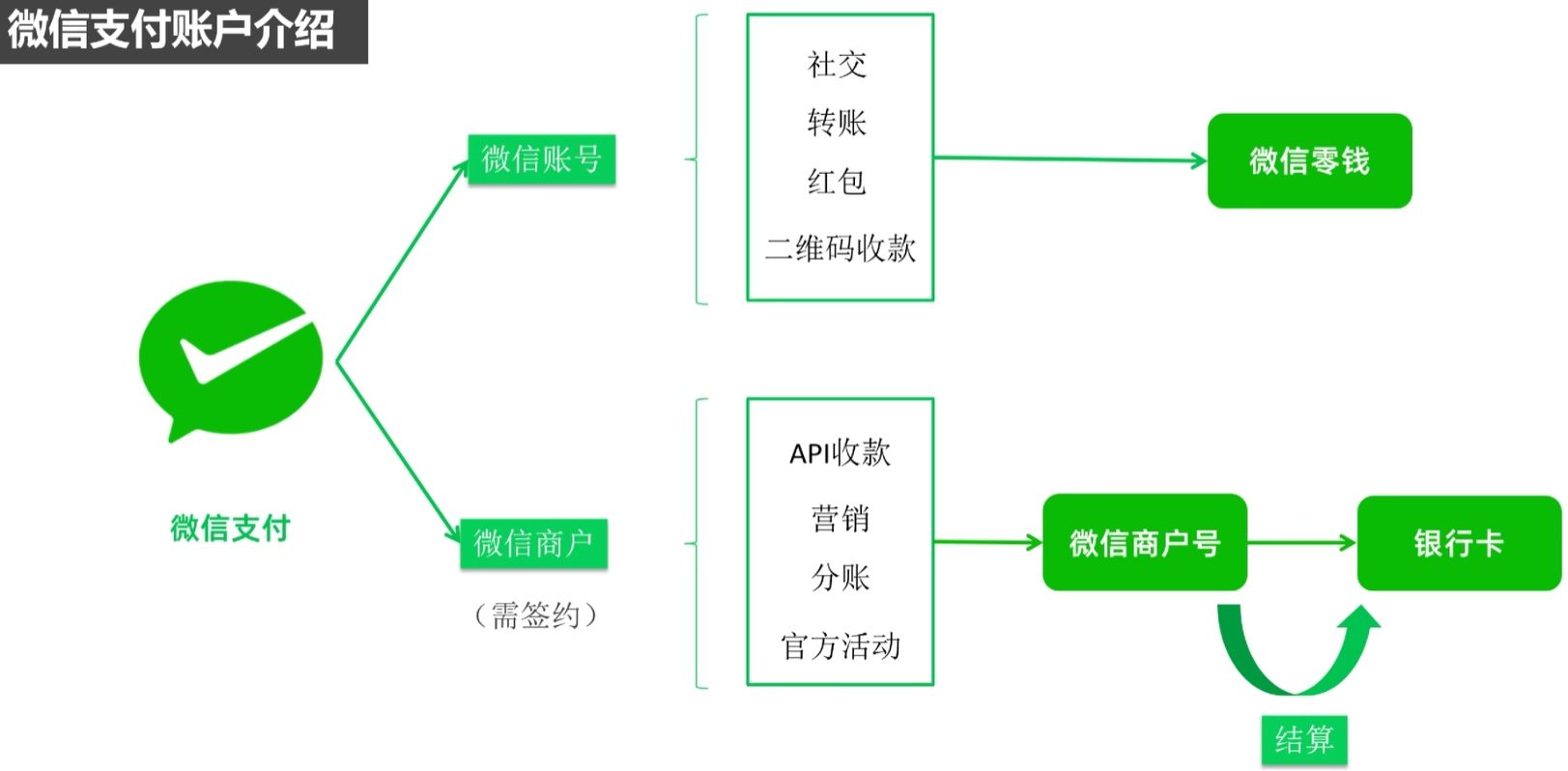
11. 微信支付(★) 微信支付账户介绍
微信账号 :二维码收款
主要面向线下收款,如果小程序面向线上,异地交易会导致账户异常
微信商户 :找有权限的代理商可以去申请签约
api 收款、营销、分账、官方活动
钱 进微信商户号,最终结算/体现到银行卡
整体业务流程 ① 签约商户
方式1
② API 对接
③ 回调处理
④ 对账
参考资料:
微信支付开发文档:https://pay.weixin.qq.com/doc/v3/partner/4012069852
微信小程序支付:https://pay.weixin.qq.com/doc/v3/partner/4012085810
参考实现流程:https://blog.csdn.net/qq_40791475/article/details/147588905